
Wreath

Tuck windows off the edge of your screen. Rest the pointer there, and they slide back.

Download free trial Buy

For macOS 14 or later on a Mac with Apple silicon. 14 days free, no account.

A drawing of a desktop: one window open in the middle, and a column of small pills on the right edge, each marking a window tucked off that edge. One tucked window is sliding back out beside its pill.

How it works

Tuck a window, keep a pill

Press ⌃⌥← or ⌃⌥→ and the front window tucks off that side of the screen, or ⌃⌥↓ off the bottom. A sliver stays behind, with a small pill wearing its app’s icon.

Rest the pointer on the pill and the window slides back out, right where it was. Push against the edge again and it tucks away. Or have it tuck itself the moment the pointer leaves.
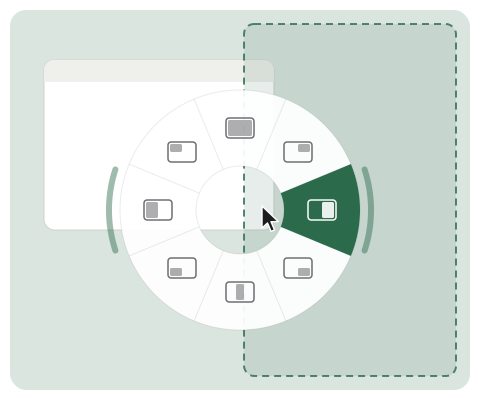

A drawing of the snap ring: a circle of slots around the pointer, each showing a place on the screen such as the left half, the right half or a quarter. The right half is picked, and an outline on the screen shows where the window will go.

The snap ring

Rest four fingers on the trackpad and lift three. A ring opens at the pointer for the window under it. Move toward a slot, a half, a quarter, a third, the whole screen or a frame you saved, and lift your last finger: the window goes there.

Push through the rim beside a side slot to tuck the window off that edge instead. Wait on a slot and its second choices fan out as cards. Choose two to twelve slots and arrange them in Settings.

The ring over the desktop

Open the same ring over the empty desktop and it lists what is tucked away on this Space: one slot per app, the most recent first. Lift on an app to bring its windows back for good, or on a single window’s card for just that one. Unstash all and Stash all sit in the ring too.

A drawing of the switcher: app tiles arranged in a ring around the pointer. One tile is picked and its open windows fan outward as cards.

The switcher

Hold ⌥ and tap Space, or rest three fingers and lift two. The apps and folders you list appear in a ring at the pointer. Move toward one and let go to switch to it, launch it or open the folder.

Push a little further, or wait, and an app’s windows fan out as cards, so you can pick the exact one.

Trackpad gestures

Pick a gesture beside the shortcuts, such as a three-finger swipe, a three-finger click and drag, or two fingers in from the trackpad’s edge. Its direction stashes the front window left, right or at the bottom, or brings it back.

Presets

Save where an app’s window belongs: its size, its place and the edge it tucks to. When the app opens, its window goes straight there. One shortcut tucks every app with a preset at once.

Every display, every Space

Each display keeps its own tucked windows, and each Space its own pills. Unplug a display and only its windows come back.

Never loses a window

Quit Wreath and every tucked window is put back. If your Mac restarts unexpectedly, Wreath puts them back the next time it opens.

The snap ring, the switcher and the trackpad gesture are each a switch in Settings, off until you turn them on. The rings open from a trackpad; the switcher also opens from the keyboard.

Nothing leaves your Mac. No account, no analytics. The only thing Wreath asks the internet is whether there is a new version.

Pricing

Available soon

One-time purchase, lifetime updates, 14-day free trial.

  • Use it on every Mac you own or use
  • Every future update included
  • No account, no subscription

Download free trial

Sold through Paddle, who handle the payment. Your key is shown as soon as you have paid, with a licence file that activates Wreath when you double-click it.

Questions

How does the trial work?

Download Wreath and use all of it for 14 days. There is nothing to sign up for and no card to enter. Settings shows how many days are left.

What happens when the trial ends?

Every tucked window is put back on screen first, so nothing is left hidden. Then Wreath pauses: no tucking, rings, switcher or shortcuts until you enter a key. Your settings stay as they are, and everything comes back the moment you enter one.

Is it really a one-time purchase?

Yes. You pay once and get every future version. The licence is for you, on every Mac you own or use.

What do I need?

macOS 14 or later, on a Mac with Apple silicon. The snap ring and the ring over the desktop open from a trackpad; everything else works with a mouse too.

Why does Wreath ask for Accessibility, and Screen Recording?

macOS lets an app move other apps’ windows only with Accessibility access, so Wreath needs it to tuck, place and bring back windows.

Screen Recording is optional. With it, the rings show a small picture of each window on its card; without it, they show the app’s icon. The pictures are drawn on your Mac and never saved or sent anywhere.

Can I get a refund?

Yes, within 14 days of buying, no questions asked. See the refund policy.

Lost your key?

Write to hello@busyelves.com from the email you bought Wreath with, and we will send your key to you again.